Export CRM Data to Excel Without Native Export Limits
Every major CRM platform has export limitations. Row caps, missing fields, or exports that include everything except the columns you actually need. If you're an analyst or ops professional, you've hit this wall.
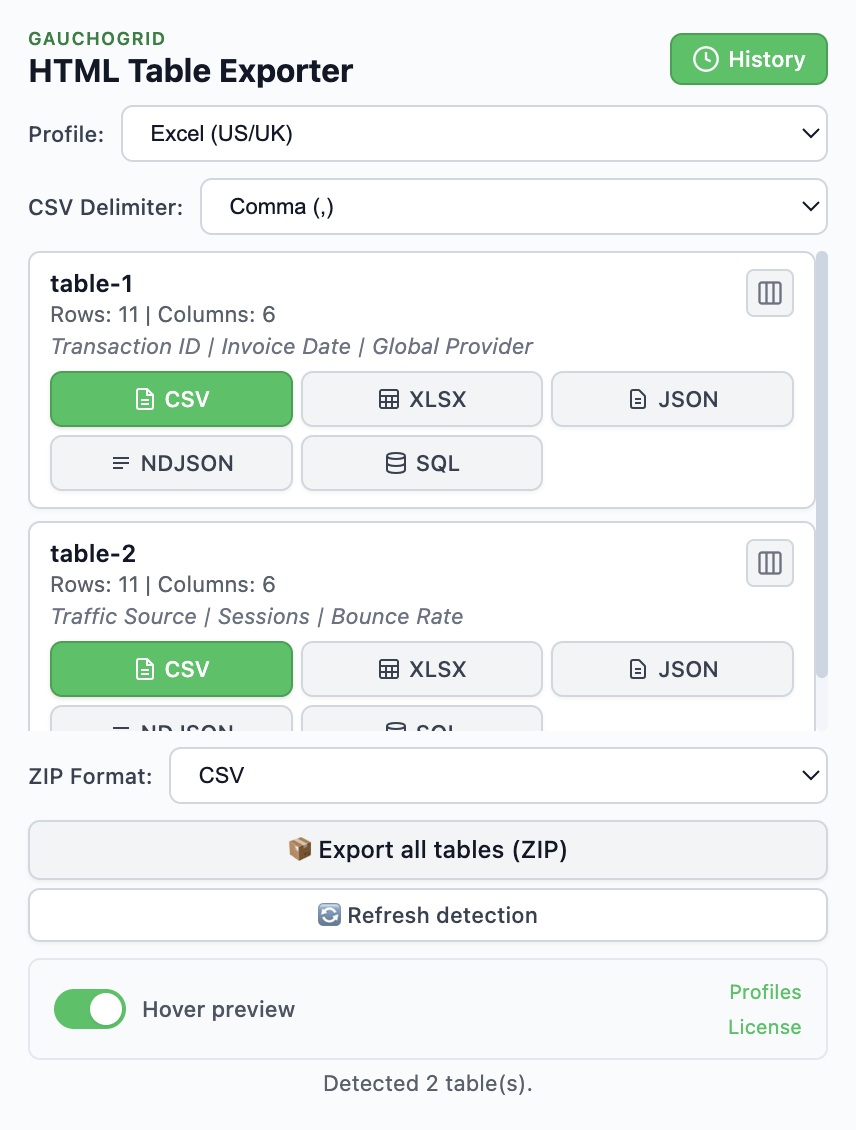
Use HTML Table Exporter to export CRM list views directly from your browser. Scroll Capture captures all rows with one click. Exports to Excel, CSV, JSON, SQL. 100% local — no data leaves your browser.
Why CRM exports are limited
CRM platforms restrict data export for several reasons, and understanding them helps you choose the right workaround:
- Row caps by plan tier — Many platforms reserve large exports for premium plans. Free or basic tiers might limit you to 250–1,000 rows per export
- Field restrictions — Some exports exclude calculated fields, related records, or custom columns. You get a partial view of your data
- Rate limiting — Platforms throttle export requests to protect their servers. Exporting large datasets can take hours through the native queue
- Format limitations — Native exports often produce CSV only, without the option for Excel, JSON, or SQL format
The irony is that you're looking at the data right there in your browser. The list view shows every record, paginated, in a clean table format. You just can't get it out easily.
Common workarounds (and their problems)
API access
If your CRM provides an API, you can pull data programmatically. But this requires developer skills, API keys, and often runs into the same rate limits. For one-time or weekly exports, it's overkill.
Third-party integrations
Tools like Zapier or Make can automate data flow, but they add another subscription cost, don't handle all field types well, and still depend on the CRM's API limits.
Copy-paste
The manual approach. It works for 20 rows. For 2,000 rows across 40 pages, it's not a realistic option. And copy-paste from web tables introduces formatting problems that require manual cleanup in Excel.
Report builders
Many CRMs have report builders that can output larger datasets. But they're often slow and produce reports with different fields than what you see in the list view.
Export what you see in the browser — directly to Excel, CSV, or JSON
The browser extension approach
The most practical solution is a browser extension that reads the data as it's displayed in your CRM's list view — the same data you can see on screen — and exports it directly.
HTML Table Exporter does exactly this. It detects the table in your CRM's list view, and its Scroll Capture feature captures every row — even across multiple pages — with one click.
The key advantages over other approaches:
- No API required — It reads what's on screen, so it works regardless of API restrictions
- WYSIWYG — You get exactly the columns and data that the list view shows, not a different subset
- WYSIWYG — You get exactly the columns and data that the list view shows, not a different subset
- Multiple formats — Export to CSV, Excel (XLSX), JSON, NDJSON, or SQL
- Automatic data cleaning — Numbers, dates, and currencies are normalized automatically
Getting clean data without manual work
One of the biggest time sinks after exporting CRM data is cleaning it. Phone numbers in different formats, dates as strings, currency values with symbols mixed in, empty cells with invisible whitespace.
HTML Table Exporter PRO handles this automatically with cleaning presets:
- Numbers — Strips currency symbols and normalizes thousand separators (both US and LATAM formats)
- Dates — Converts relative dates ("3 days ago", "Yesterday") to ISO format
- Null values — Standardizes empty cells, "N/A", "—", and whitespace to consistent null representation
- Booleans — Converts checkmarks, "Yes"/"No", and other variations to true/false
You can save these cleaning rules as reusable export profiles. Set it up once for your CRM's contact list, then apply the same profile every time you export.
Privacy and security considerations
CRM data is sensitive. Before using any tool to export it, consider where the data goes.
HTML Table Exporter processes everything locally in your browser. No data is ever uploaded to external servers. There's no account, no cloud sync, no analytics.
This makes it safe for enterprise environments where data governance is strict. The extension is GDPR compliant by design — because it simply doesn't collect any data.
Export your CRM data in seconds
No row limits, no API keys needed. Export what you see on screen to Excel, CSV, JSON, or SQL.
Free tier available · PRO unlocks Scroll Capture · 14-day money-back