Documentation
Everything you need to extract, clean, and export web tables like a professional. From basic exports to advanced data cleaning workflows.
Introduction
HTML Table Exporter is a Chrome extension that detects tables on web pages and exports them to your preferred format. Unlike web scrapers that require complex configuration, this tool works instantly: click, select format, download.
All processing happens locally in your browser. Your data never leaves your device.
Who is this for?
- Data analysts who need to extract tables from financial reports, government sites, or research databases
- Researchers collecting structured data from academic sources or Wikipedia
- Developers who need quick access to tabular data without building a scraper
- Anyone tired of copy-pasting tables cell by cell
When to Use HTML Table Exporter
HTML Table Exporter is designed for a specific set of use cases. Understanding where it excels — and where other tools might be a better fit — will help you get the most out of it.
Best for
- One-off table exports — financial reports, government datasets, research databases, Wikipedia tables, sports stats
- Web application data — many CRM platforms, analytics dashboards, ERP systems, and business tools render data as HTML tables that the extension can detect
- Recurring exports — save your cleaning rules and column settings as a profile, then reuse them every time you export from the same source
- Privacy-sensitive environments — all processing is local, making it suitable for corporate, financial, or healthcare contexts where data cannot leave the browser
- Data that needs cleaning — dates, numbers, currencies, and null values are normalized automatically before export
Not designed for
- Automated or scheduled scraping — this is a manual, interactive tool. If you need a headless scraper or cron-based pipeline, consider tools like Scrapy, Puppeteer, or Playwright
- Non-table data — the extension detects HTML
<table>elements. Cards, lists, feeds, and unstructured layouts are not supported - API-based data access — if the data you need is available through an API, using the API directly will be more reliable than extracting from the rendered page
- Guaranteed compatibility with every website — web table structures vary widely. The extension works with standard HTML tables and many complex web applications, but some sites use non-standard rendering that may not be fully supported
The free version has no row limits and works on most tables. Install it and test on your specific site before considering PRO.
Installation
-
Visit the Chrome Web Store
Open the HTML Table Exporter page in your Chrome browser.
-
Click "Add to Chrome"
Click the blue button and confirm in the popup. Installation takes about 3 seconds.
-
Pin the extension (optional)
Click the puzzle icon in Chrome's toolbar and pin HTML Table Exporter for quick access.
The extension requests "Read and change all your data on websites". This is required to detect tables, but remember, all processing is local and we never transmit any data.
License Activation
After purchasing HTML Table Exporter PRO, you'll receive a license key via email. Follow these steps to unlock all PRO features.
Your license is validated during activation and cached locally. Periodic internet access is required to re-verify license status, ensuring uninterrupted service.
How to Activate PRO
-
Click "Activate" in the extension
Open the extension popup and click the "Activate" button in the top-right corner. You'll also see the PRO features listed at the bottom of the free version.
-
Enter your license key
Paste your license key in the format
XXXXXXXX-XXXX-XXXX-XXXX-XXXXXXXXXXXXand click "Activate". The key was sent to your email after purchase. -
Start using PRO features
Once activated, the extension will display "HTML Table Exporter PRO" with a History button. All PRO features are now unlocked.
Visual Guide
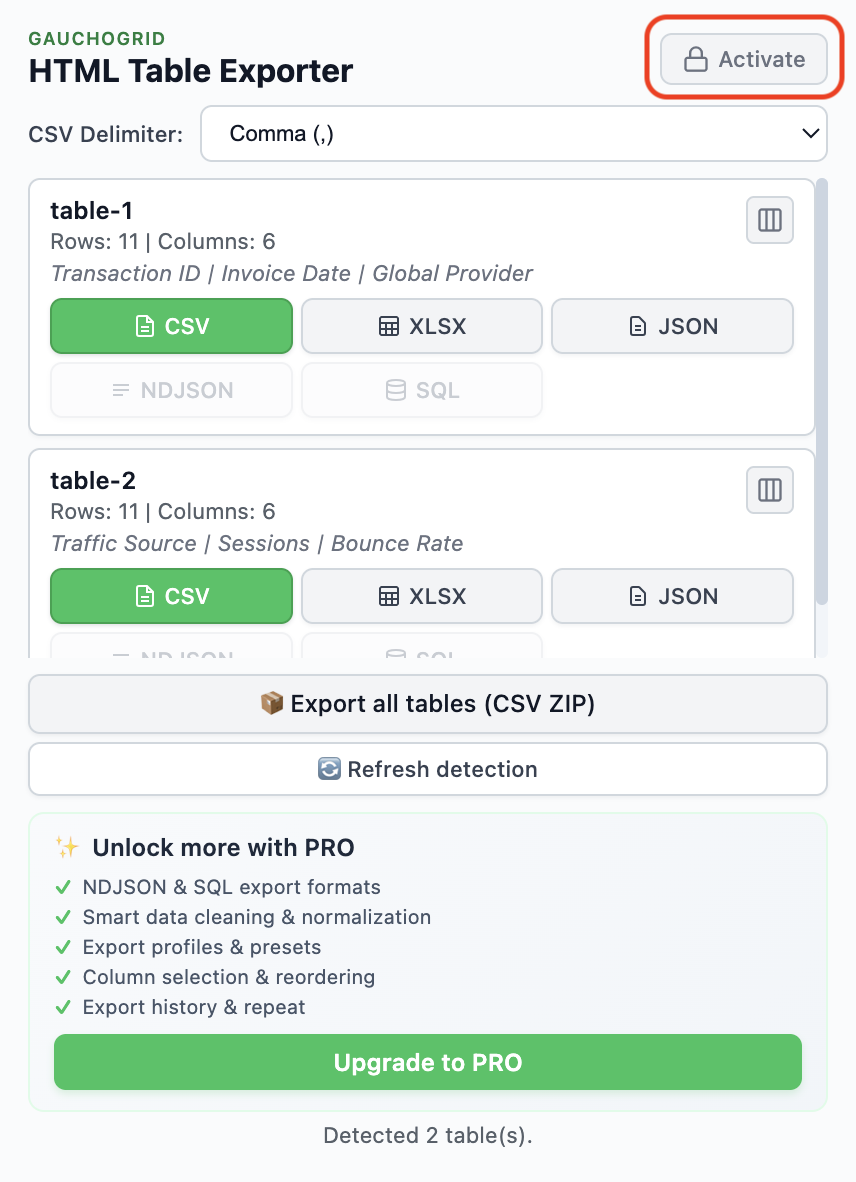
Click the "Activate" button in the top-right corner. The free version shows which features you'll unlock with PRO.
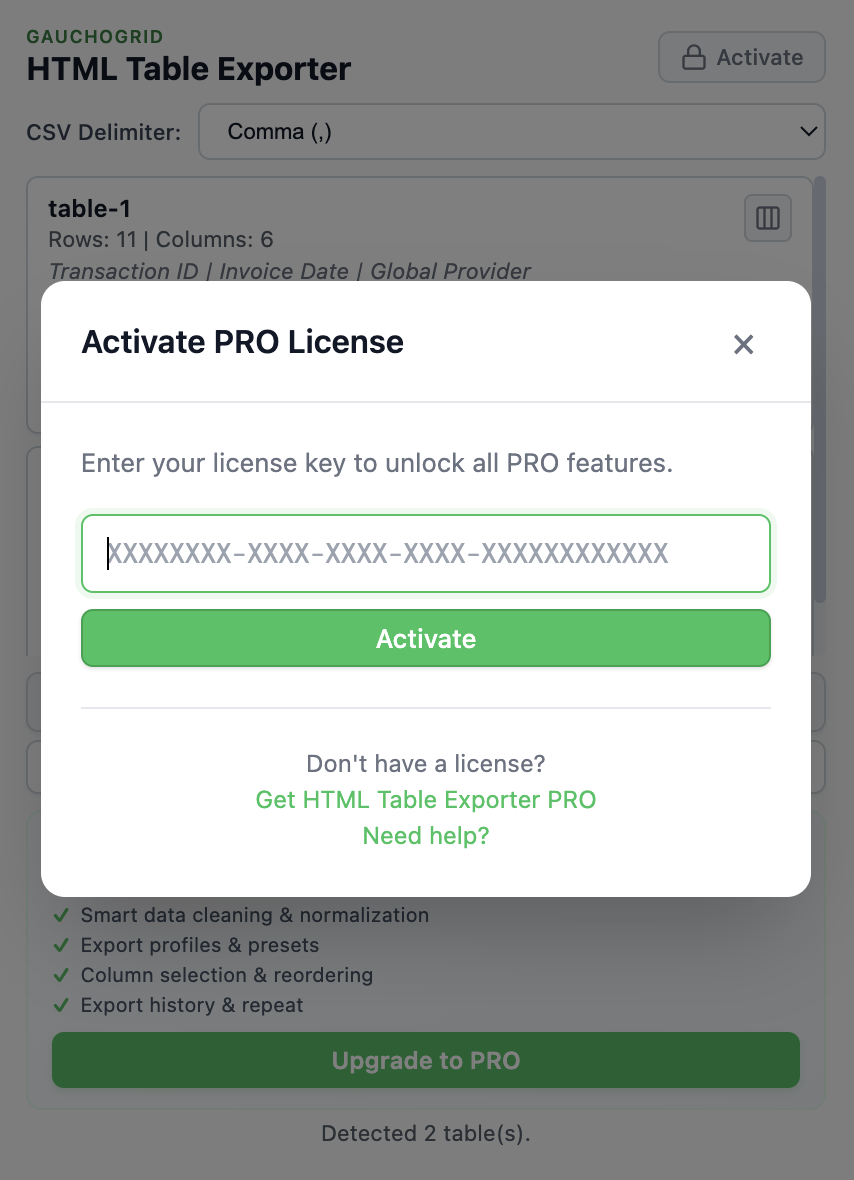
Paste your license key and click "Activate". If you don't have a key yet, click "Get HTML Table Exporter PRO".
License Troubleshooting
"Invalid license key" error
Make sure you're copying the complete license key including all dashes. The format should be XXXXXXXX-XXXX-XXXX-XXXX-XXXXXXXXXXXX. Check for extra spaces before or after the key.
Didn't receive license key
Check your spam folder. The email comes from Lemon Squeezy (our payment processor). If you still can't find it, visit the Support page with your order number.
Need to transfer license to another device
Each license key is valid for a single device. If you need to use PRO on additional devices, you can purchase additional licenses or consider our TEAM or BUSINESS plans.
Get HTML Table Exporter PRO with a 14-day money-back guarantee. View pricing options →
Quick Start
Export your first table in under 60 seconds:
How to Export Tables
Smart Selection (Fastest Method)
This approach saves time by allowing users to select their target data directly. Simply click anywhere on a table within the webpage and then open the HTML Table Exporter PRO extension icon. The extension automatically highlights and focuses on that specific table, allowing it to be exported instantly without the need to scroll through other detected results.
Flexible Export Formats
Each detected table can be exported in several professional formats by clicking the corresponding button on the table card:
- Excel (XLSX) — Ideal for deep data analysis
- CSV — Perfect for general spreadsheet use
- JSON or NDJSON — Works best for web development and NoSQL databases
- SQL — Generates ready-to-use INSERT statements for database usage
Bulk Download
For users who want to extract all tables at once, bulk download is available. To do this, locate the ZIP Format dropdown menu and choose your preferred format (such as CSV or JSON) for the files inside the archive. By clicking "Export all tables (ZIP)," all tables on the page are downloaded together in one organized package.
Company,Revenue,Growth
Apple,394.33B,+7.8%
Microsoft,211.91B,+12.4%
Google,282.84B,+9.8%
Export Formats
HTML Table Exporter supports five output formats, each optimized for different use cases.
CSV (Comma-Separated Values)
The universal format. Works with Excel, Google Sheets, databases, and virtually any data tool. PRO users can customize the delimiter (comma, semicolon, tab) for regional compatibility.
Name,Email,Status
John Doe,[email protected],Active
Jane Smith,[email protected],Pending
JSON (JavaScript Object Notation)
Perfect for developers and APIs. Each row becomes an object with column headers as keys.
[
  {
    "Name": "John Doe",
    "Email": "[email protected]",
    "Status": "Active"
  }
]
Excel (XLSX)
Native Excel format with proper cell types. Numbers are numbers, dates are dates.
NDJSON (Newline Delimited JSON)
Perfect for streaming data processing and NoSQL databases. Each line is a separate JSON object, making it ideal for large datasets and log processing.
{"Name":"John Doe","Email":"[email protected]","Status":"Active"}
{"Name":"Jane Smith","Email":"[email protected]","Status":"Pending"}
SQL (INSERT Statements)
Generate ready-to-use INSERT statements for direct database import. Perfect for MySQL, PostgreSQL, SQLite, and other SQL databases.
INSERT INTO table_name (Name, Email, Status) VALUES
('John Doe', '[email protected]', 'Active'),
('Jane Smith', '[email protected]', 'Pending');
PRO adds NDJSON and SQL export formats. Batch ZIP includes all formats at once.
Data Cleaning
Web data is messy: Currency symbols, inconsistent date formats, hidden characters; these break analyses and imports. HTML Table Exporter cleans your data automatically.
Automatic Cleaning (Free)
- Trims whitespace from all cells
- Removes hidden Unicode characters
- Normalizes line breaks
- Preserves merged cell structure
Smart Cleaning Profiles (PRO)
PRO includes pre-built cleaning profiles for common data types:
Currency Profile
Removes $, €, £ symbols and thousand separators. Converts $1,234.56 to 1234.56.
Percentage Profile
Strips % symbols. Converts 45.5% to 0.455 or 45.5.
Date Profile
Standardizes dates to ISO format. Converts Jan 15, 2024 to 2024-01-15.
// Raw data from website
"  $1,234.56  ", "Jan 15, 2024", "45.5%"

// After cleaning profiles
1234.56, "2024-01-15", 0.455
Batch Export
When a page has multiple tables (or you need multiple formats), batch export saves hours.
Batch export is available exclusively to PRO users.
Export All Tables
Click "Export All" in the extension popup. Each table becomes a separate file.
ZIP Download
Get a single ZIP containing all tables in your chosen format.
tables-export.zip
├── table-1-revenue-summary.csv
├── table-2-revenue-summary.csv
└── table-3-revenue-summary.csv
Complex Tables
Real-world tables are rarely simple grids. HTML Table Exporter handles the complexity that breaks other tools.
Merged Cells (Rowspan/Colspan)
When cells span multiple rows or columns, the exported data fills the appropriate cells to maintain structure.
Nested Tables
Tables inside tables are common on older websites. Hover highlighting helps you verify before exporting.
Dynamic/JavaScript Tables
Many modern web applications render tables using JavaScript frameworks. If the table is visible in your browser, the extension can generally detect it. However, results may vary depending on how the site structures its DOM — some applications use non-standard elements that may not be recognized as tables.
Some sites load table rows as you scroll. Scroll to the bottom first to ensure all data loads.
Free vs PRO Comparison
The free version is genuinely useful, no artificial limitations. PRO adds power features for daily users.
| Feature | Free | PRO |
|---|---|---|
| CSV Export | ✔ | ✔ |
| JSON Export | ✔ | ✔ |
| Excel Export | ✔ | ✔ |
| NDJSON Export | — | ✔ |
| SQL Export | — | ✔ |
| Auto table detection | ✔ | ✔ |
| Merged cell handling | ✔ | ✔ |
| ZIP download (all tables) | CSV only | Multi-format |
| Preset profiles (Pandas, DuckDB, etc.) | — | ✔ |
| Cleaning presets (numbers, dates, nulls) | — | ✔ |
| Column selection & reordering | — | ✔ |
| Export history | — | ✔ |
| Repeat last export | — | ✔ |
| Hover preview | — | ✔ |
| 100% local processing | ✔ | ✔ |
Troubleshooting
"No tables detected"
Some sites use <div> layouts that look like tables but aren't semantic HTML tables. The extension primarily detects <table> elements and also supports some JavaScript-based grid components. Make sure the page has fully loaded before exporting.
Missing data in export
Check if the table uses lazy loading. Scroll through the entire table first, then export.
Export has wrong encoding
The extension uses UTF-8 encoding. If you see garbled characters in Excel, use Data → From Text/CSV to import.
Extension not working on a site
Some sites (like Chrome Web Store itself) block extensions for security. This is a Chrome limitation. If you believe the extension should work on a specific site but doesn't, or if you notice extraction errors, please report it through our Support Form so we can investigate.
Visit our Support page and fill out the form to report a bug. Support is handled personally and replies may take up to 10 business days.