Table Capture Alternative: Unlimited Rows, Zero Tracking
Table Capture is a popular Chrome extension for exporting web tables. But if you've hit its 250-row limit or been frustrated by Excel requiring a paid upgrade, you're not alone. Here's why many users are switching to alternatives.
Best alternative: HTML Table Exporter — unlimited rows on free tier, Excel export included free, zero tracking. Same workflow, no limits.
Common Table Capture frustrations
Table Capture works well for basic use cases, but users frequently run into these limitations:
- 250 row limit — Free exports are truncated at 250 rows with no warning until you open the file
- Excel costs extra — XLSX export requires PRO subscription; free version only does CSV
- Tracking concerns — Extension includes Google Analytics, collecting usage data
- Tiered row limits — Even PRO Basic ($1/mo) only increases limit to 1,000 rows
- Cluttered interface — Many icons and options can be overwhelming for simple exports
The hidden truncation problem
Table Capture doesn't clearly warn you before exporting that your data will be cut off. You might export a 500-row table and only discover it's been truncated to 250 rows after opening in Excel.
Feature comparison: Table Capture vs HTML Table Exporter
Want a deeper technical comparison? Read our full feature-by-feature breakdown.
| Feature | Table Capture | HTML Table Exporter |
|---|---|---|
| Row Limits (Free) | 250 rows max | ✓ Unlimited |
| Row Limits (PRO) | 1,000 rows (Basic) | ✓ Unlimited |
| CSV Export | ✓ Free (250 rows) | ✓ Free (unlimited) |
| Excel (XLSX) Export | PRO only | ✓ Free |
| JSON Export | ✓ Free (250 rows) | ✓ Free (unlimited) |
| NDJSON Export | ✗ | ✓ PRO |
| SQL Export | ✗ | ✓ PRO |
| Google Sheets | ✓ PRO | ✗ |
| PDF Capture | ✓ PRO | ✗ |
| Data Cleaning | ✗ | ✓ PRO |
| Export Profiles | ✗ | ✓ PRO |
| Privacy (No Tracking) | Google Analytics | ✓ Zero tracking |
| Batch Export (ZIP) | ✓ Free | ✓ Free |
Switch from Table Capture — unlimited rows, free Excel export
The row limit problem explained
Table Capture's tiered row limits are its most frustrating feature. Here's how the limits work:
- Free: Maximum 250 rows per export
- Pro Basic ($1/month): Maximum 1,000 rows per export
- Pro Max ($10/month): Unlimited rows
This means if you export financial data, product catalogs, or research datasets regularly, you'll hit the limit constantly. A simple 300-row table requires a paid subscription.
HTML Table Exporter has no row limits on any tier. Export tables with 10 rows or 10,000 rows — same experience, same price (free for basic formats).
Privacy: A significant difference
If you work with sensitive data — financial reports, medical information, proprietary business data — privacy matters.
Table Capture's approach
- Includes Google Analytics tracking
- Requires network permissions for Sheets integration and analytics
- Usage data (which features, how often, what sites) is collected
HTML Table Exporter's approach
- No analytics, no telemetry, no usage tracking
- No network permissions at all — extension cannot make network requests
- 100% local processing — data never leaves your browser
Why no network permissions matters
An extension that cannot make network requests provides stronger privacy guarantees than one that chooses not to. HTML Table Exporter physically cannot send your data anywhere.
Pricing comparison
| Tier | Table Capture | HTML Table Exporter |
|---|---|---|
| Free | CSV, JSON (250 rows) | CSV, XLSX, JSON (unlimited) |
| Basic/Monthly | $1/mo (1,000 rows) | $14.99/mo (all features) |
| Full/Annual | $120/year (unlimited) | $99/year (all features) |
Key takeaway: HTML Table Exporter's free tier does more than Table Capture's paid Basic tier. And for unlimited features, HTML Table Exporter PRO ($99/year) is cheaper than Table Capture Pro Max ($120/year).
How to switch from Table Capture
Switching is simple — both extensions work the same way:
Install HTML Table Exporter
Add to Chrome — takes 10 seconds, no account needed.
Use the same workflow
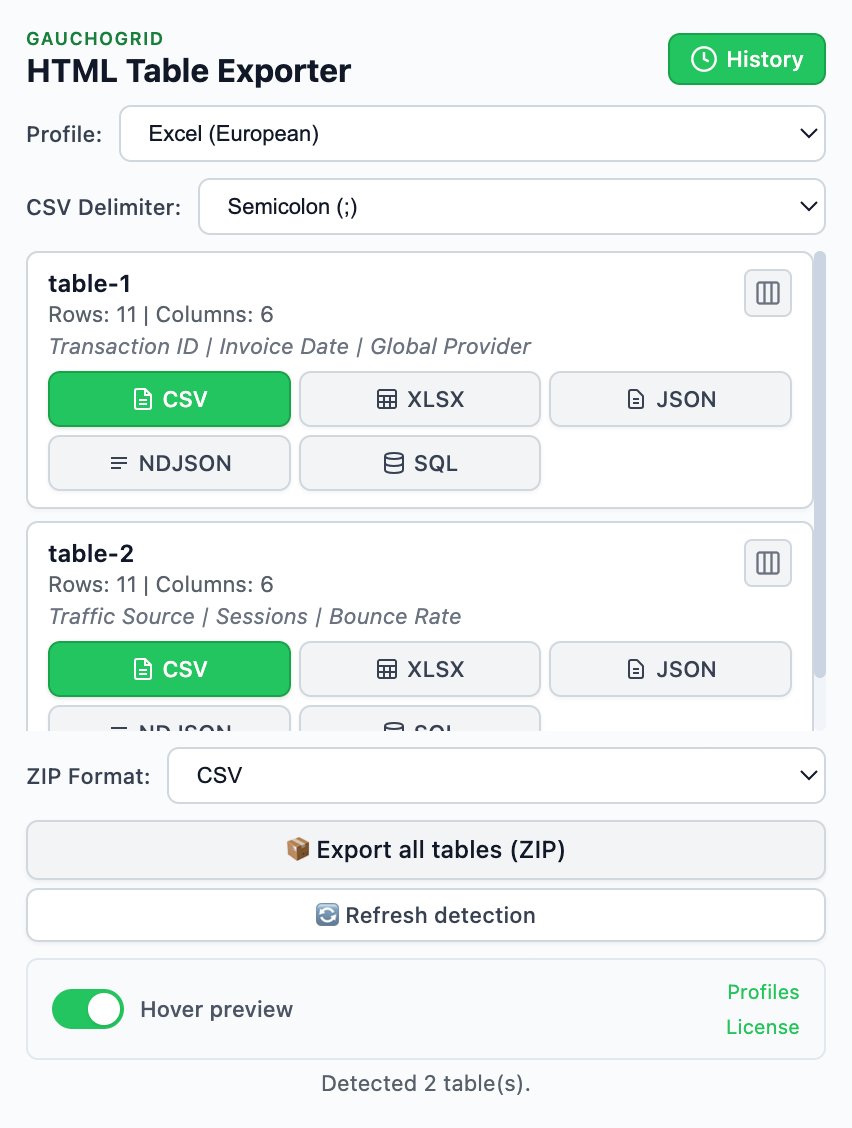
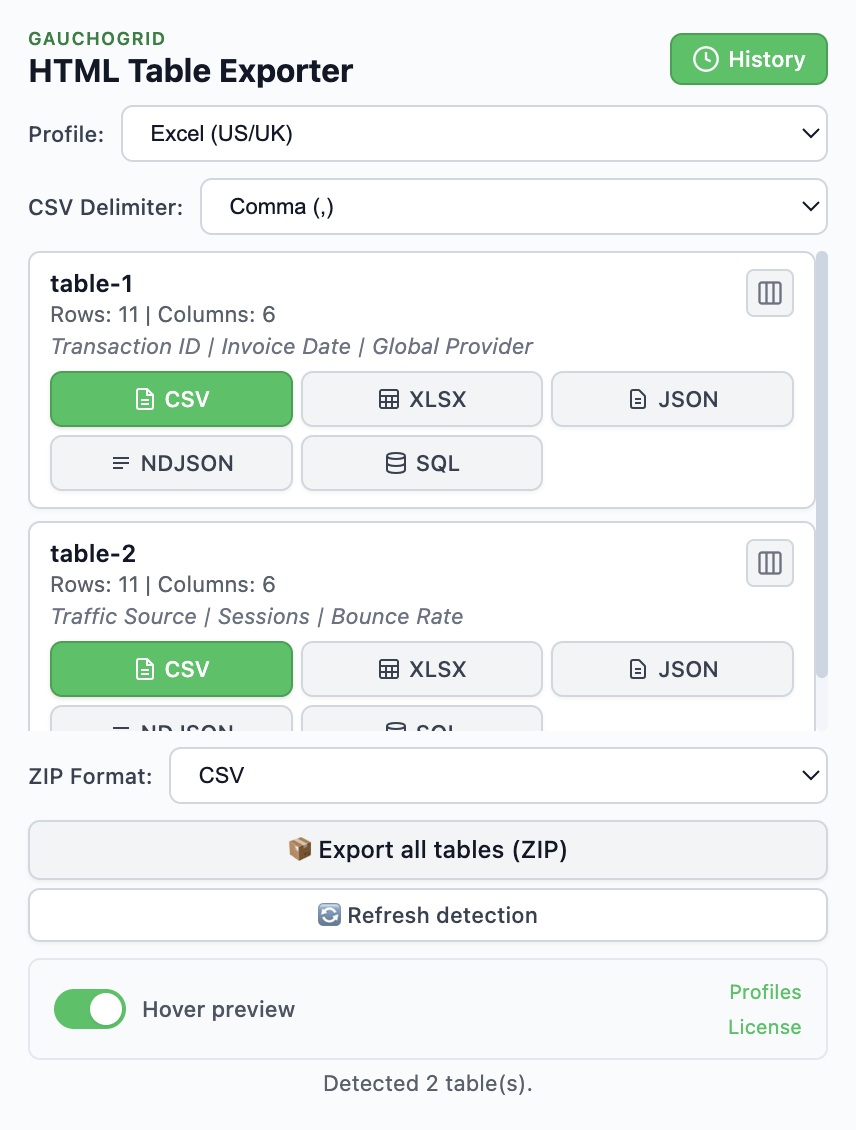
Click the extension icon, see detected tables, click your format. The workflow is nearly identical.
Optionally disable Table Capture
Once you're comfortable, you can disable or remove Table Capture from chrome://extensions.
When to stay with Table Capture
Table Capture still makes sense if you need:
- Google Sheets integration — Direct export to Sheets (HTML Table Exporter doesn't have this)
- PDF table extraction — Capturing tables from PDF documents
- Auto-paging — Automatically navigating multi-page tables
- Workshop mode — Handling complex div-based table structures
For most users who just need to export HTML tables to Excel, CSV, or JSON, HTML Table Exporter is the better choice.
Ready to switch from Table Capture?
Same workflow, no limits. Export unlimited tables in CSV, Excel, and JSON with zero tracking.
Switch in 30 seconds · Same workflow · No learning curve