Best Chrome Extension to Copy Tables to Excel
You need to get a table from a website into Excel. Copy-paste breaks the formatting. Excel Power Query does not see JavaScript tables. The answer is a browser extension — but which one? We tested 7 options.
Best overall: HTML Table Exporter — unlimited rows free, native XLSX export, works on JavaScript tables, zero tracking. Install in 30 seconds, export your first table in 10.
What we tested
We evaluated each extension on the criteria that matter most when you need to get web data into Excel:
- Excel export — Does it export native XLSX files, or just CSV?
- Row limits — Can you export large tables without hitting a paywall?
- JavaScript tables — Does it work on modern web apps (React, Angular, Vue)?
- Privacy — Does it track your usage or require an account?
- Speed — How many clicks to export?
- Price — What is free vs paid?
The winner: HTML Table Exporter
HTML Table Exporter is the best Chrome extension for copying tables to Excel. Here is why:
| Feature | HTML Table Exporter | Most Competitors |
|---|---|---|
| Excel (XLSX) export | Free | Paid or missing |
| Row limit | Unlimited | 250-500 rows |
| JavaScript tables | Works | Works |
| Account required | No | Often yes |
| Tracking | None | Google Analytics |
| Clicks to export | 2 | 3-5 |
What makes it stand out
- Free XLSX export — Most extensions either lack Excel export or lock it behind a subscription. HTML Table Exporter includes it free.
- No row limits — Export tables with 10,000 rows without hitting a paywall. Table Capture limits you to 250 rows on the free tier.
- Zero tracking — The extension has no network permissions. It literally cannot send data anywhere. Your data stays in your browser.
- Works on JavaScript tables — Modern sites render tables with JavaScript. Since the extension runs in your browser, it sees exactly what you see.
Export your first table to Excel in 10 seconds
Full comparison: 7 extensions tested
We tested the most popular Chrome extensions for table export. Here is how they compare:
| Extension | Free XLSX | Row Limit | Tracking | Best For |
|---|---|---|---|---|
| HTML Table Exporter | Yes | Unlimited | None | Most users |
| Table Capture | PRO only | 250 rows | GA | Google Sheets users |
| Data Miner | Yes | 500 pages/mo | Account | Complex scraping |
| Instant Data Scraper | CSV only | Unlimited | None | Paginated lists |
| CopyTables | Clipboard | Unlimited | None | Quick copy-paste |
| Listly | Yes | Limited | Account | List extraction |
| Scraper | CSV only | Unlimited | None | Developers |
How to export a table to Excel
Using HTML Table Exporter takes about 10 seconds:
Install the extension
Go to the Chrome Web Store and click Add to Chrome. No account needed.
Go to your table
Navigate to any website with a table. Click on the table to highlight it (optional).
Click the extension icon
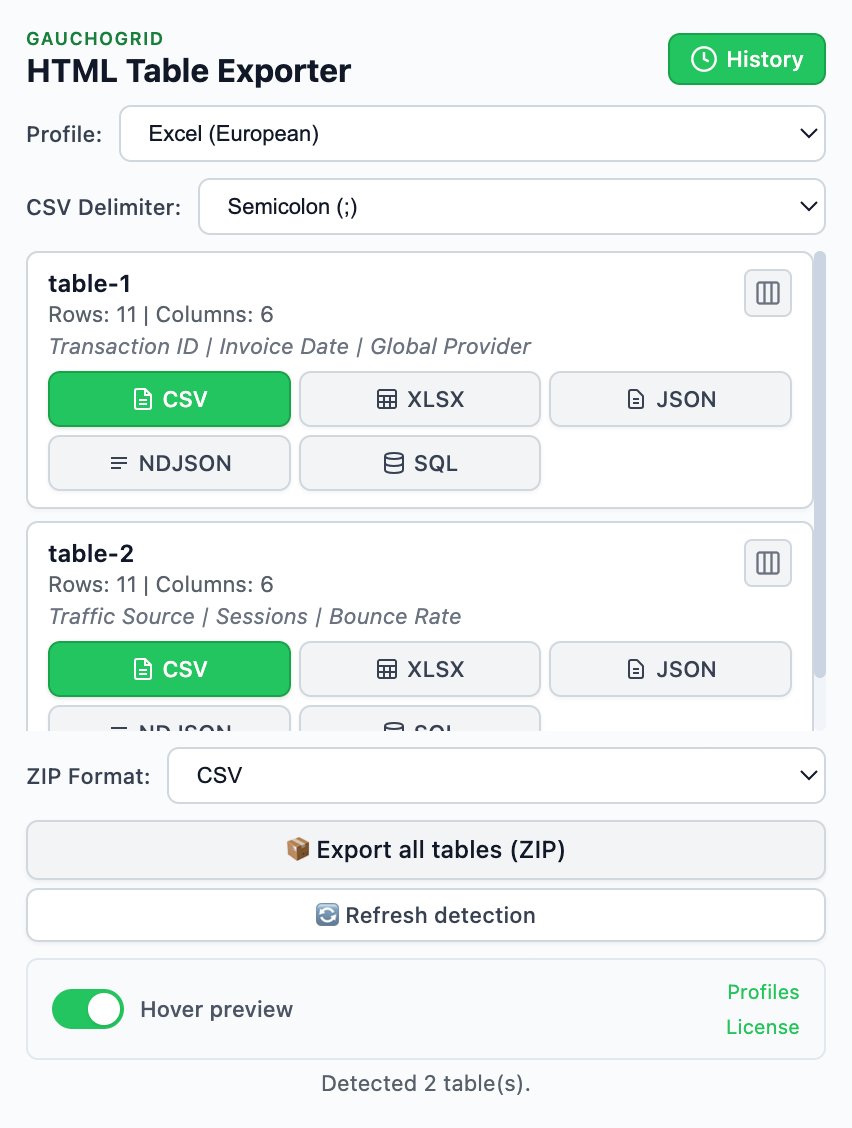
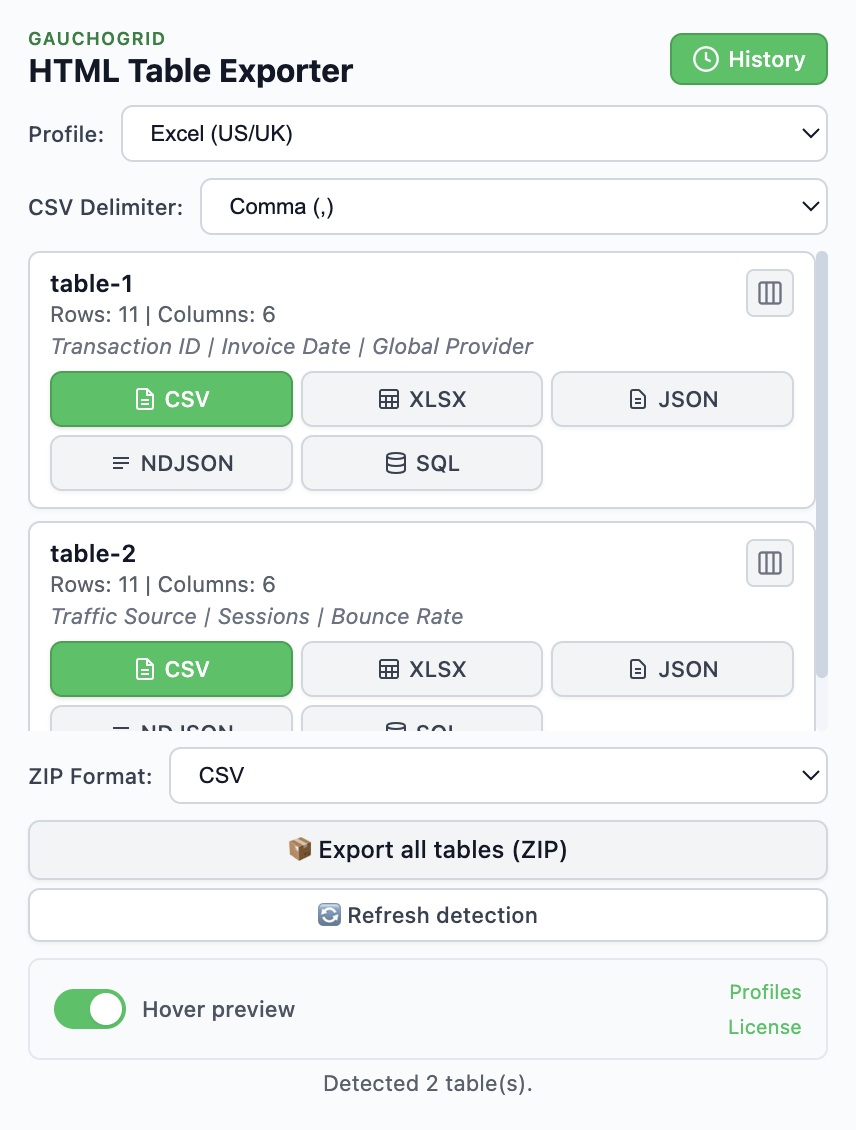
Click the HTML Table Exporter icon in your toolbar. The popup shows all detected tables.
Click XLSX
Find your table and click the XLSX button. The Excel file downloads instantly.
When to consider alternatives
HTML Table Exporter is the best choice for most users, but there are cases where alternatives make sense:
Table Capture
Use if: You need direct Google Sheets integration or PDF table extraction.
Downsides: 250 row limit on free tier, Excel export requires PRO ($36/year), includes Google Analytics tracking.
Read our detailed comparison.
Data Miner
Use if: You are building reusable scraping recipes for complex sites.
Downsides: Requires account, 500 page limit per month, steep learning curve.
Instant Data Scraper
Use if: You need to scrape paginated content (search results, product listings).
Downsides: CSV only (no Excel), AI detection sometimes grabs wrong data.
Frequently asked questions
What is the best free Chrome extension for copying tables to Excel?
HTML Table Exporter is the best free option. It includes XLSX export with no row limits, which most competitors lock behind paid tiers.
Can I copy tables from pages that require login?
Yes. Browser extensions run inside your browser session, so they can access any page you are logged into. This is a key advantage over Excel Power Query.
Why does copy-paste not work well for tables?
When you copy from a website, you copy HTML formatting — hidden elements, CSS styles, merged cells. Excel interprets this unpredictably, resulting in broken formatting. Extensions export clean data.
Is my data safe with browser extensions?
Check the extension permissions. HTML Table Exporter has no network permissions — it cannot send data anywhere. All processing happens locally in your browser.
Do I need to pay for Excel export?
Not with HTML Table Exporter — XLSX export is free with no limits. Some competitors like Table Capture charge for Excel export or limit free users to CSV.
Summary
If you need to copy tables from websites to Excel, HTML Table Exporter is the best Chrome extension. It has everything you need on the free tier — XLSX export, unlimited rows, JavaScript table support — with zero tracking and no account required.
For a broader comparison of table export tools, see our guide to the 5 best Chrome extensions for exporting tables.
Export any table to Excel
The best Chrome extension for copying web tables to Excel. Free XLSX export, unlimited rows, zero tracking.
No server required - Zero tracking - Clean Excel files