HTML Table Scraper: 5 Best Chrome Extensions (2026)
Want to scrape HTML tables without writing Python or setting up Selenium? Chrome extensions can do it in one click. We tested the top 5 options and compared them on features, row limits, privacy, and ease of use.
Best overall: HTML Table Exporter — unlimited rows free, CSV/Excel/JSON export, zero tracking. Best for most users who need quick, reliable table extraction.
Why use a Chrome extension instead of Python?
Python libraries like BeautifulSoup, Pandas, and Selenium are powerful, but they come with overhead:
- Setup time — Install Python, create a virtual environment, install dependencies
- JavaScript rendering — Many tables are rendered by JavaScript; Python needs Selenium or Playwright to see them
- Maintenance — Scripts break when websites change their HTML structure
- One-off tasks — Writing a script for a single table export is overkill
Browser extensions solve all of this. They run in your browser (so JavaScript tables work automatically), require zero setup, and export in one click.
When to use Python instead
If you need to scrape hundreds of pages automatically, schedule recurring jobs, or transform data programmatically, Python is still the better choice. Extensions are best for quick, manual extractions.
5 HTML table scraper extensions compared
We tested each extension on Wikipedia tables, financial data sites (Google Finance, Yahoo Finance), and sports statistics (FBRef). Here's how they stack up:
| Extension | Free row limit | Excel export | Tracking | Best for |
|---|---|---|---|---|
| HTML Table Exporter | Unlimited | Free | None | Most users |
| Table Capture | 250 rows | PRO only | Google Analytics | Google Sheets users |
| HTML-Table Scraper | Unlimited | No | None | CSV only needs |
| Data Miner | 500 pages/mo | Free | Account required | Complex scraping |
| CopyTables | Unlimited | No | None | Cell selection |
Scrape any HTML table — unlimited rows, no code required
1. HTML Table Exporter
Best for: Most users who need reliable, no-fuss table extraction.
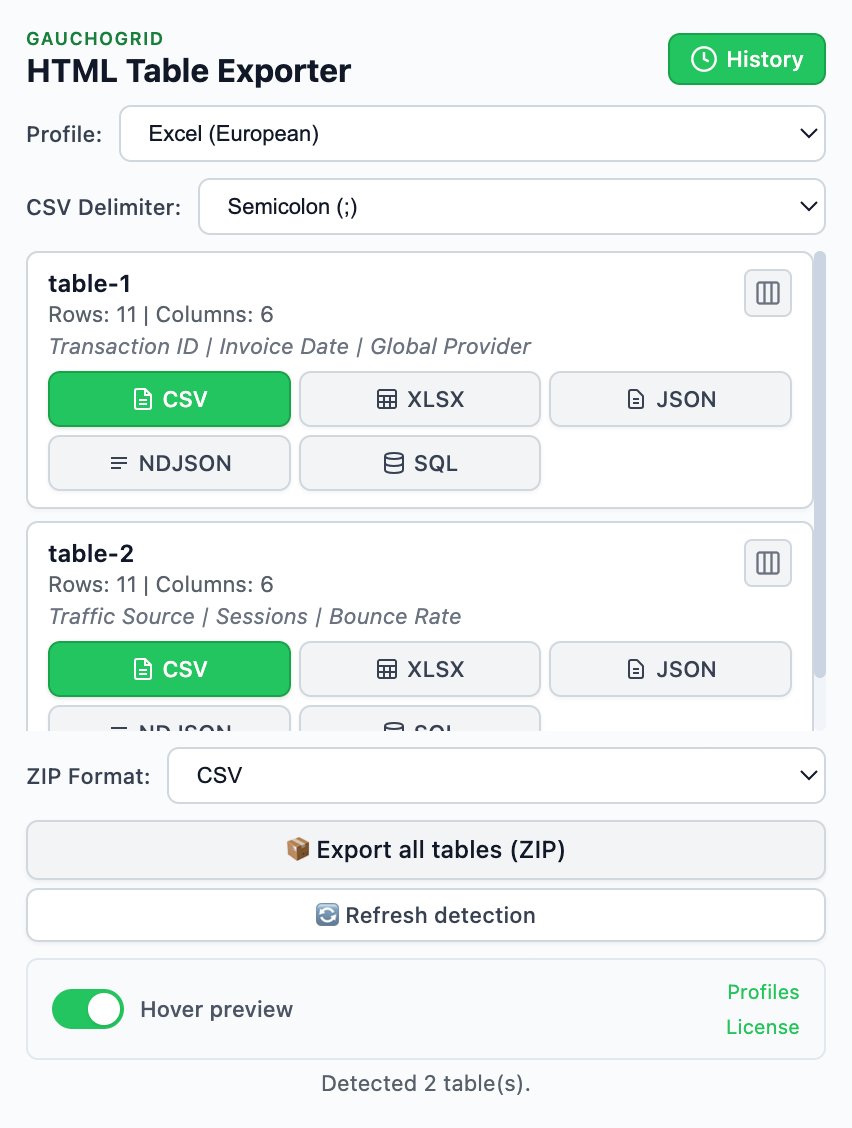
HTML Table Exporter focuses on doing one thing well: exporting HTML tables to usable formats. It detects tables automatically, shows a preview, and exports in one click.
Pros:
- Unlimited rows on free tier
- CSV, JSON, and Excel export included free
- Zero tracking — no Google Analytics, no data collection
- Clean, modern interface
- Handles complex tables (rowspan, colspan, multi-level headers)
Cons:
- No Google Sheets integration
- No auto-pagination for multi-page tables
PRO version ($14.99/month or $99/year): Adds NDJSON, SQL export, saved profiles, data cleaning presets, column reordering, and export history.
2. Table Capture
Best for: Users who need direct Google Sheets integration.
Table Capture is the most popular table extension with over 800,000 users. It's feature-rich but comes with significant free tier limitations.
Pros:
- Direct export to Google Sheets
- Auto-pagination for multi-page tables
- Workshop mode for complex div-based tables
- PDF table extraction
Cons:
- 250 row limit on free tier (truncates silently)
- Excel export requires paid subscription
- Includes Google Analytics tracking
- Cluttered interface with many options
Pricing: Free (limited), PRO Basic $12/year (1,000 rows), PRO Max $120/year (unlimited).
3. HTML-Table Scraper
Best for: Simple CSV extraction with no frills.
HTML-Table Scraper is a lightweight extension that does one thing: right-click a table, copy to clipboard or save as CSV. No popup, no configuration.
Pros:
- Extremely simple — right-click menu only
- No row limits
- No tracking
- Available for Firefox too
Cons:
- CSV only — no Excel, JSON, or other formats
- No table preview or detection
- Struggles with complex tables (rowspan/colspan)
- No active development (last update 2023)
4. Data Miner
Best for: Complex scraping tasks with custom selectors.
Data Miner is a full-featured web scraper, not just a table exporter. It uses "recipes" — reusable scraping configurations that can extract data from any page structure.
Pros:
- Powerful custom selectors
- Recipe library with pre-built scrapers
- Handles non-table data
- CSV and Excel export
Cons:
- Requires account creation
- Steep learning curve
- 500 pages/month on free tier
- Overkill for simple table exports
Pricing: Free (500 pages/mo), paid plans from $19.99/month.
5. CopyTables
Best for: Selecting specific cells within a table.
CopyTables lets you select specific cells by holding Alt and dragging. It's unique in allowing partial table selection rather than full-table exports.
Pros:
- Select specific cells or columns
- No limits
- Lightweight
Cons:
- Clipboard only — no file export
- No Excel or JSON
- Manual selection required
Our verdict
For most users, HTML Table Exporter is the best choice. It offers unlimited exports, multiple formats, and respects your privacy — all for free. The PRO version adds power-user features at a reasonable price.
Choose Table Capture if you need direct Google Sheets integration or auto-pagination for multi-page tables.
Choose Data Miner if you need to scrape complex page structures beyond simple HTML tables.
Bottom line
If you just want to grab a table and get it into Excel or a CSV file, HTML Table Exporter does it faster and with fewer limitations than any other option.
Ready to scrape your first table?
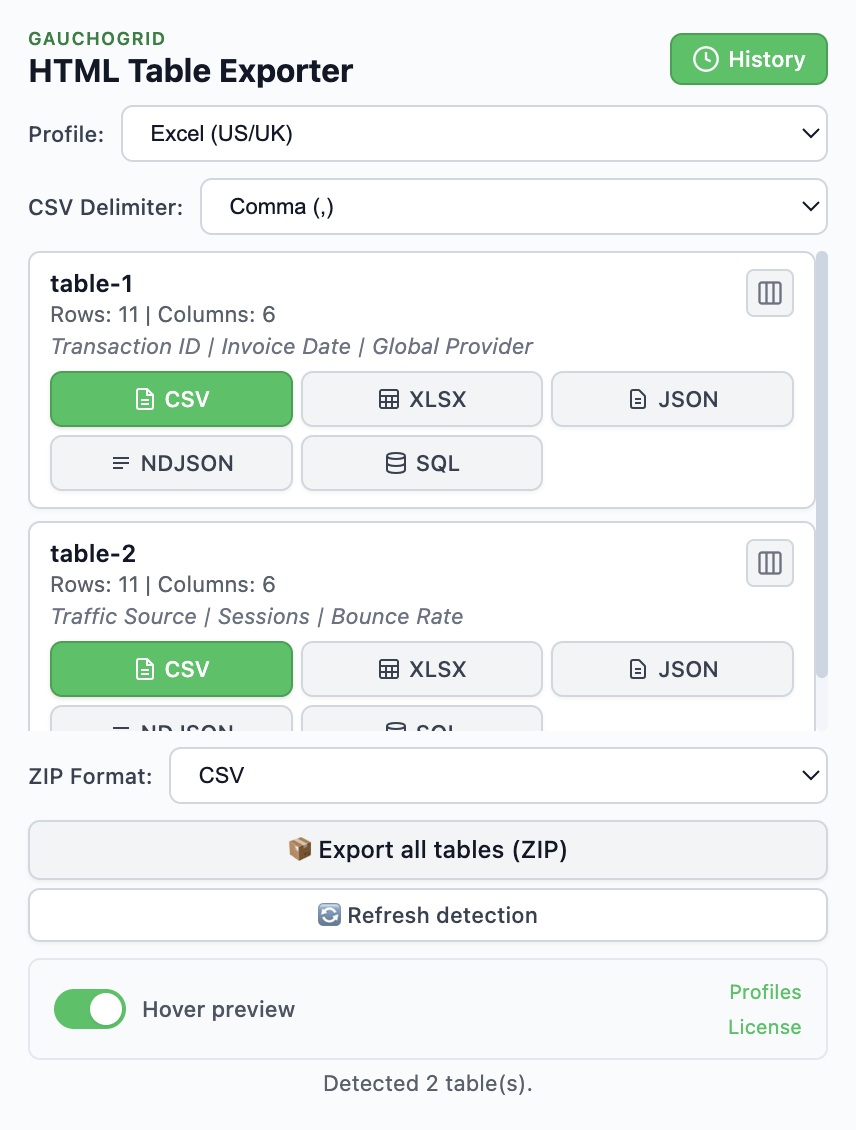
Install HTML Table Exporter and export any table in seconds. No account, no limits, no tracking.
Works on any website · No signup required